Wednesday, May 05, 2010

Using tabs in SharePoint 2010 central administration, a solution

image I don’t know about you but tabbed navigation has become a must have for me in the past years. I mean who wants to open a different window for each and every web page.

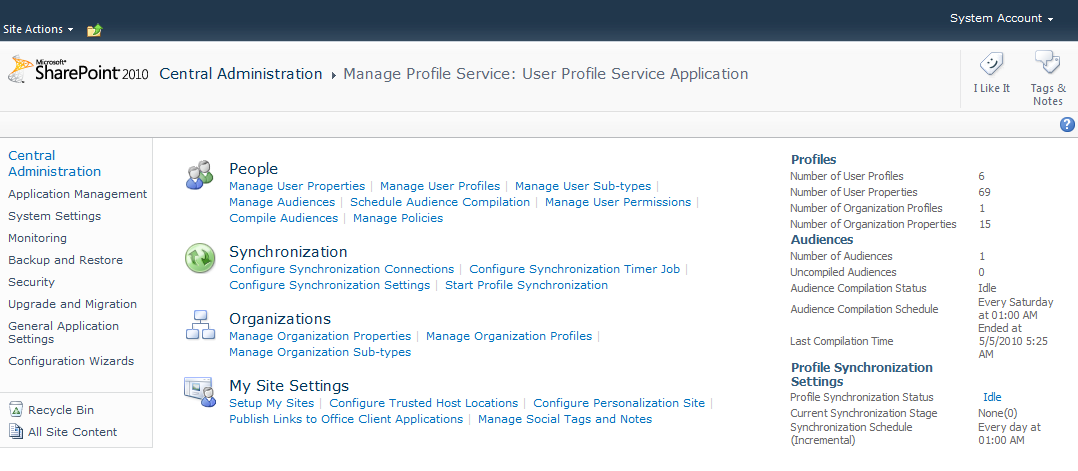
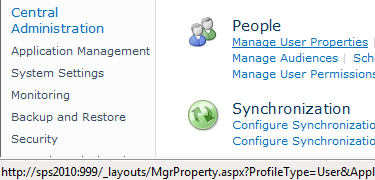
Well my friends, it seems like Microsoft remembers too fondly those pre-tab browsing days and wants us to return to this prehistoric era. I am talking about the infamous Javascript links one can find in the SharePoint 2010 Central Administration – User Profile Service Application management page:

image

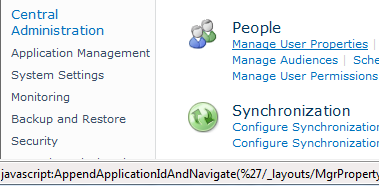
If you mouse over those links, you will see in the status bar that they are not actual links but instead Javascript calls:

image

If you add to that, the fact that the navigation is completely useless in this site, you have the recipe for a disastrous user experience as you can’t even open tab to compensate.

Having to work with the User Profile Service Application for a client I got fed up with the situation and decided to act. As javascript is the swiss knife of SharePointer, I wrote a script to replace those javascripts link with actual links so that I can open these links in tabs if needed :

image

Voila, here are your tab-compliant links.

As FireFox is now fully supported by SharePoint, I use this code in a GreaseMonkey user script. This way the script is applied on this page whatever the farm I am administering. Without even having to modify anything on the farms.

To add the user script, nothing too fancy, just add “*/_layouts/ManageUserProfileServiceApplication.aspx*” in the include. And add the following as the code :

// Jonathan Roussel - http://blog.jonathanroussel.com

// Make sure to Include */_layouts/ManageUserProfileServiceApplication.aspx*

var cUrl=document.location.href;
var aId = cUrl.substring(cUrl.indexOf("ApplicationID"));
var links,link;

links=document.getElementsByTagName("a");
for(var i=0;i<links.length;i++)
{
var link = links[i];
if(link.href.indexOf("javascript:AppendApplicationIdAndNavigate(")>=0)
{
link.href = link.href.substring(45,link.href.length-2) +aId;
}
};

If you want a more portable solution, I also put this code together as a Bookmarklet. Just drag and drop this link to your favorite bar. Thus whenever you are on the “Manage User Profile” page, just hit the link in the favorite bar to transform these nasty Javascript links into actual links.


SP2010_SCA_TabAllower


Tested with IE8, FireFox 3.6, Chrome 4.1.

Wednesday, April 21, 2010

Awesomizing your SharePoint picture libraries in no time

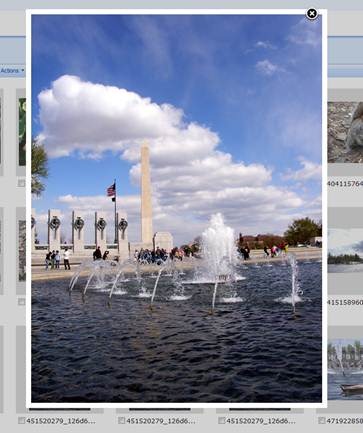
Still using those plain olds SharePoint picture libraries? You know the libraries where a click on a thumbnail brings ups the DispaForm.aspx pages with details about the pics that none of your users care about. What about having your picture in your libraries shown this way instead :

A much better look, don't you think?

Guess what, it’s as easy as ABC to enhance the way your picture libraries look like with very nice inpage popup.

The basics

To do that you need:

  • jQuery, a javascript library to ease development
  • FancyBox, a jQuery plugin to handle picture zoom/magnification automatically
  • A Content Editor Web Part, I use this editor web part to push my JavaScript code that will
      • Change the thumbnail so that they link to the full size picture instead of the Picture detail
      • Tell fancybox to do its magic so that these regular links launches a zoom on the full size picture

A detailed walkthrough

  • Get jQuery from (http://jquery.com/ )
  • Get FancyBox from: (http://fancybox.net/ )
  • Extract the fancybox folder from the zip you got
  • Put the jQuery file and fancybox in someplace your user can access. For the sake of simplicity I am going to put these files in a document library for this walkthrough. In a real world scenario I am putting these files in the 12 using a WSP.
            • Create or open an existing document library
            • Create a JS folder (or not, I just like my stuff to be organized)
            • Push the jquery-1.4.2.min.js and fancybox folder in.

image

  • Now you can go to your Picture Library and Edit the page (screen grabbed from a French WSS Install)

clip_image001

  • Add a Content Editor Web Part and edit it
  • Open the “Source Editor”

clip_image002

Paste the following code

<script type="text/javascript" src="/Documents/JS/jquery-1.4.2.min.js"></script>
<script type="text/javascript" src="/Documents/JS/fancybox/jquery.fancybox-1.3.1.pack.js"></script>
<link rel="stylesheet" href="/Documents/JS/fancybox/jquery.fancybox-1.3.1.css" type="text/css" media="screen" />
<script type="text/javascript">
// Jonathan Roussel
$(document).ready(function() {
//for each IMG node children of a A node in a .thumbnail class section
$(".thumbnail a > IMG").each(function(){
if($(this).attr('alt') == 'Image')
{
// Replace thumbnail link from item page to the pic itself
var imageUrl = $(this).attr('src');
// Change http://moss/pics/_t/MyPics_jpg.jpg
// In - http://moss/pics/MyPics.jpg
// using a regular expression
imageUrl = imageUrl.replace(/((.)+)\/_t\/((.)+)_([a-z]{3})\.[a-z]{3}/gi,'$1/$3.$5');
$(this).parent().attr('href',imageUrl );
$(this).parent().attr('rel','Gallerie' );
$(this).attr('alt','');
//plugin fancybox
$(this).parent().fancybox({'cyclic':true});
}
});
});
</script>
  • Press Ok and enjoy the magic of Fancybox.
The result might not yet be perfect; the two following notes shall set everything straight.

Notes 1,of missing GUI pics

The path to the pictures in the CSS might need to be modified for the pictures used by fancybox to work .
So if you don’t see any Loading, Close, Prev, Next button, open the CSS in the document library (/documents/js/fancybox/jquery.fancybox-1.3.1.css)
And replace
(src='/fancybox 
with
(src='/documents/js/fancybox

Reload the Image Library in Internet Explorer and the pics shall be there.

Note 2, of using this with IE8:

Fancybox, SharePoint and IE8. Needs some fixing

This component seems to have trouble with IE8 and SharePoint. Without a strict XHTML doctype the picture frame are messed up as you can see on the right:


Fancybox, SharePoint and IE8. A match fixed !

As adding an XHTML strict doctype was a no go, I tried to circumvent the problem by removing the frame and setting the white frame right. Here is the result:


Not as nice as what fancybox can do (lost the gradient border) but good enough for my purpose. To get this result you will need to do these modifications in the css file (the same on you modified in note 1):


Original & Instructions


Target


#fancybox-outer replace line

background: #FFF;


top:-10px !important;
left:-10px !important;
/*background: #FFF; */


#fancybox-inner replace line

top: 0;
left: 0;


top: 0 !important;
left: 0 !important;


.fancy-bg add line


display: none !important;


Add at the end of the file


.fancybox-ie {
background-color:#fff;
}

After saving the CSS and reloading the page you should be all set and ready to receive your end user congratulations :)

Of course, this is only a start. The next step would be to have the picture retrieved by a Content Query Web Part with the fancybox magic added. It would mean losing the option to download multiple picture and it would allow for an even better rendering.

Sunday, March 28, 2010

PowerPivot - Choosing a calculated column type

clip_image001Lately I have been using PowerPivot (more details on this at the end of this post) and I came across a problem whose solution might interest others.


The Problem

As I created a calculated column based on a date column, the result was always displayed as a number instead of a date. Worst the drop down list where you can choose the type of the column was greyed out.

Here is an example; CalculatedColumn1 is created using some number function (ROUNDDOWN). Yet I am working with Dates, while PowerPivot understandably consider the results to be a number, one can’t override this automatic setting of the Data Type. The “Data Type” DropDown list is just greyed out with a value of Number (Nombre in French in the screenshot below) :

image

The obvious drawback is that my column isn’t very readable, I mean no normal human beings can understand that 40255 mean 18/03/2010 00:00, else leave me a comment, I would be interested to meet you :)

My solution

Here is my workaround, just throw a date function in your function. In my case I choose to add TIME(0,0,0) which is a neutral operation :

clip_image004

Thus PowerPivot will understand that your column is a date, and you will be able to select a Date format:

image

Some Information on PowerPivot (aka Gemini)

For those who don’t know what PowerPivot is, you might know by its codename, Gemini. It is a Microsoft Addin for Excel and SharePoint 2010 that allows you to analyze tons of data very easily. It’s supposedly really fast due to its in In Memory Analysis. For BI noobs (a group I am sadly part of) you might see it as a personal version of Anaysis Service (PowerPivot for Excel) or as a Team flavored BI (PowerPivot for SharePoint), on this subject I found this blog post by the PowerPivot Team very interesting (http://blogs.msdn.com/powerpivot/archive/2010/03/12/comparing-analysis-services-and-powerpivot.aspx).

Microsoft released a series of nice videos to explain PowerPivot, here is the first one :

Here is what PowerPivot promises and, as far as my experience went, delivers:

  • Analysis (Pivot Table and graph) of Data from multiples sources (DataBase, Excel files, flat files)
  • Analysis of huge volume Data (I am talking millions here)
  • Integration of simple relational constraint between your data sources
  • And maybe the coolest part is that this is available to any Information Worker already familiar with Excel. I would take this one with a grain of salt; your Information Worker needs to be quite technical savvy to fully benefit from this tool.

Additionally the Integration with SharePoint is supposed to bring added performance and to deliver your reports more easily to multiple persons. I haven’t tested the integration, yet!

After spending some quality time with PowerPivot I have got to admit being very enthusiastic about this product. I can see numerous scenarii where it would have saved me hours in the past (More details and cool links at the end of the post). I just can’t wait to set my hands on the RTM version of Excel 2010 and PowerPivot to enjoy this tool without worrying so much about the too frequent crashes (in my experience double clicking on a graph horizontal axis freezes quite often).

To go further I would advise you to start with the official PowerPivot site (http://www.powerpivot.com ), especially the demo part.

To my French reader I would also recommend the hilarious BI video by Têtes à Claques that you might have enjoyed at the 2010 Techdays in Paris :(http://www.microsoft.com/france/serveur/sql/secretedouard/ )

Saturday, March 06, 2010

Replacing delegate controls with custom actions

jQuery When using jQuery in a SharePoint application, you obviously need to deploy the jQuery javascript file. The deploy part is no big deal, the referencing is a bit more complex. In this post is the detail of a new way to reference the resources, it involves using Custom Action to load external resources such as javascript or css.

Current Solution

As explained by Jan Tielens (http://weblogs.asp.net/jan/archive/2008/11/20/sharepoint-2007-and-jquery-1.aspx there are usually three solutions considered to be available to do that:

  • Add a <script src> tag in a Content Editor Web Part
  • Add a <script src> tag in the Master Page itself
  • Add a <script src> tag dynamically in the <head> using a DelegateControl placed in the standard master pages

In my case, only the third solution was usable. So I went with it, created my feature, added it to my solution.

The problem

The story would have ended here if it wasn’t for a detail I discovered quickly enough; the standard publishing pages (BlueGlassBand and so forth) do not have the AdditionalPageHead delegate control defined. Thus my solution worked really well with collaboration pages but failed on publishing pages.

The obvious solution was to modify the master page used by my client to add the Delegate Control tag but the client didn’t want any modification to the master page. Thus I was at this point :

How do I add a reference to some javascript and css files in the HTML <head> section of a page generated by a master page that doesn’t include any DelegateControl and that I can’t modify.

The solution

After digging a bit I found a very surprising (to me at least) but fully working solution. Use a Custom Action.

Nuts 2 on Flickr by Steffenz

Before you start thinking I am nuts, let me explain, If you take a close look at the MSDN you will see that you can specify a ControlAssembly and a ControlClass, guess what, the class specified will do the actual rendering. Custom Actions aren’t just for Site Action Menu entries, ECB and so forth.

So here is more detail:

  • Create a class inheriting from CompositeControl
  • Override the constructor so that I can plug a method in the Load event.
  • In my method triggered on load, access the page header and add a LiteralControl to declare the scripts and css I need

And here is a stripped down but fully working version of my code :


using System;
using System.Collections.Generic;
using System.Text;
using System.Web.UI.WebControls;
using System.Web.UI.HtmlControls;
using System.Web.UI;

namespace ItemsInTheSafeControl
{
class SiteActionMenu : CompositeControl
{
public const string mStrIncludedRessources = "<script type=\"text/javascript\" src=\"/_layouts/jquery-1.3.2.min.js\">";

public SiteActionMenu()
{
this.Load += new EventHandler(SiteActionMenu_Load);
}
protected void SiteActionMenu_Load(object Sender, EventArgs E)
{
LiteralControl vLiteralControl = new LiteralControl(SiteActionMenu.mStrIncludedRessources);
this.Page.Header.Controls.Add(vLiteralControl);

}
protected override void Render(HtmlTextWriter Writer)
{
}
}
}

To plug this code as a custom action, I use the following ElementManifest


<?xml version="1.0" encoding="utf-8" ?>
<Elements xmlns="http://schemas.microsoft.com/sharepoint/">
<CustomAction
Id="SAG_CR_Ressources_Deploy_Action"
Location="Microsoft.SharePoint.StandardMenu"
GroupId="SiteActions"
ControlAssembly="SAG.CommentsRating, Version=1.0.0.0, Culture=neutral, PublicKeyToken=406cabeaa3d2932a"
ControlClass="SAG.CommentsRating.WebParts.SiteActionMenu">
</CustomAction>
</Elements>
Now you just package the ElementManifest in a feature, add your dll and create a solution out of it (wspbuilder is my tool of choice). Your solution manifest will need to specify a SafeControl tag to be added for your class/namespace in the web.config for your CompositeControl.

Here you go, a non-intrusive quite generic solution to plug additional resources into SharePoint.

Sunday, January 24, 2010

JSONP your ASP.Net Web Service – Direction to your destination

The classical SOAP-WSDL Web Service stack I was recently developing a Comments & Rating SharePoint solution. As postbacks were forbidden (for good reasons, who loves postbacks ?), we used jQuery with a custom Web Service hosted in a SharePoint web application to try offering a nice experience to end-users.

The custom WebService was to be invoked from pages located on foreign domains. As we had no control over those foreign sites (they weren’t even ASP.Net sites), we had to use JSONP to make it works.

While there is no major difficulty in JSONPing your ASP.net web services even if it is hosted in a SharePoint Web Application, I stumbled upon a couple of problem I wanted to share with you. So let me take you on the road to JSONP in your SharePoint solutions.

Freeway opened - a few turn on the road but no trouble ahead

Free way opened - a few turn on the road but no trouble ahead I will not cover the basics of making your web service JSONP compliant, other bloggers have done a great job at that ( I would recommend Adel Khalil’s and Jason Grundy’s (check the comments) posts among others). Neither will I talk about the basis of JSONP, just let me tell you it is an hack of the HTML script tag intended use that will let you call Web Services from other domains. Other ressources will let you understand why we need this hack (Jonathan Snook cross domain ajax : a quick summary) and what this hack does (Raymond Camden’s article does a great job at this).

There are really very few specifics to SharePoint as far as the Web Service is concerned. My SharePoint solution pushes the asmx file in a subfolder of the Layouts folder along with a web.config specific to this folder that contains the necessary configuration to support JSON (thus JSONP) in the Web Service. The Web Service code behind is deployed in the GAC.

Roadblock #1 – Does size matters ?

Roadblock #1 Once everything was it in place I started to test the Web Service and everything was going fine. But as I started to push more and data, at one point the web service started not to work anymore. As soon as the Web Service had less data to return it would works again.

To check what was going wrong, I fired up fiddler to check the web service response and saw this :

Jsonp1260899050254({"d":{"__type":"……. );jsonp1260899050254(…ErrorMessage":null}});

As you can see it seemed like my response was cut at one point (always between 16 000 and 17 000 characters) with a ‘)’, then the name of the callback method was added again and finally it was closed correctly.

I don’t know what the problem was exactly. I suspect the the streambuffer used in the HttpHandler suggested by Adel Khalil’s was somewhat full at about 16 000 characters. Thus the compliance method would be run twice.

Being onsite and needing to fix the problem ASAP I didn’t spent time investigating and rushed into finding a solution. I tried to simplify the compliance HttpModule as much as possible and here is what I come up with:


public class JsonHttpModule : IHttpModule
{
private const string JSON_CONTENT_TYPE = "application/json; charset=utf-8";

public void Dispose()
{
}
public void Init(HttpApplication app)
{
app.BeginRequest += OnBeginRequest;
app.EndRequest += new EventHandler(OnEndRequest);
}
public void OnBeginRequest(object sender, EventArgs e)
{
HttpApplication app = (HttpApplication)sender;
HttpRequest request = app.Request;
//Make sure we only apply to our Web Service
if (request.Url.AbsolutePath.ToLower().Contains("MyWS.asmx"))
{
if (string.IsNullOrEmpty(app.Context.Request.ContentType))
{
app.Context.Request.ContentType = JSON_CONTENT_TYPE;
}
app.Context.Response.Write(app.Context.Request.Params["callback"] + "(");
}
}
void OnEndRequest(object sender, EventArgs e)
{
HttpApplication app = (HttpApplication)sender;
HttpRequest request = app.Request;
if (request.Url.AbsolutePath.ToLower().Contains("MyWS.asmx"))
{
app.Context.Response.Write(")");
}
}
}


As you can see my HttpModule is doing as little as possible:
  • Before generating the response : Add the name of callback from the QueryString parameters and a ‘(‘ to the response if the HttpModule is running for my web Service
  • After generating the response : Add ‘);’ at the end of the response if the HttpModule is running for my WebService
imageSimple enough for my problem to go away, moreover it meant less code to maintain in the future.

If needed, it is possible to add a switch to make it SOAP and straight JSON compliant, if no callback parameter is given it wouldn’t do anything to the response. It would only take a couple more lines.

Roadblocks #2 : Definitely a matter of size

Roadblocks #2 : Definitely  a matter of size It could have ended like that, a running ASP.Net JSONP compliant Web Service, but it didn’t. Keeping testing the web service with more and more data, I hit another point where the Web Service seemed not to work.

Once again, I called my good friend fiddler for help. It soon became apparent that the server would only return 500 responses.


500 http error code

Http 500 status code means that an internal server error happened. So I went searching through my application logs, SharePoint logs, the Windows logs, … but couldn’t the slightest beginning of a reason for my problem.
Using the debugger I found out that my Web Service methods were called correctly and that no exceptions were thrown by my code.

It was getting weirder and weirder. The response data were correctly generated and returned by my Web Service. I didn’t know exactly what happened but figured that it had to do with the way ASP.Net serialized (‘converted’ if you wish) my response object. As it happened when the size of object increased I started to look for a parameter that would cap the JSONP response size. Such a parameter exists. By default this parameter specify that no response longer than 102 400 character can be serialized to JSONP. For reference you can consult: http://msdn.microsoft.com/en-us/library/bb763183.aspx

It takes place in the web.config as illustrated below:


<configuration>
<system.web.extensions>
<scripting>
<webServices>
<jsonSerialization maxJsonLength="102400"/>
</webServices>
</scripting>
</system.web.extensions>
</configuration>


imageAnd here it is, problem solved.


image Yet I have to admit being upset when I found out the solution to my problem, the fact no error messages where logged anywhere I could found them. How are we supposed to diagnose our problem when the only error message is a 500 Http Error code?

Finally arriving

Here I am, I now have a working WSP that deploys my JSONP web service in my SharePoint Web Application. Using jQuery to consume the Web Service it is even possible to use my application from non SharePoint web pages hosted on other web servers.

Wednesday, September 09, 2009

Retrieve List and View GUIDs with a bookmarklet

image

As I am often using SharePoint Designer, I regulary need to get the lists or views guids on my WSS or MOSS sites. Until now I would use SharePoint Manager or access the List or View settings to get the IDs I needed from the URL. Not a big deal but definitely a pain.

I now have a very simple solution to solve this problem, a bookmarklet. I just drag and drop the following links to the bookmarks bar of my browser and click on these links when I am on a SharePoint List or library display. The IDs are then either Popuped (Use CTRL+C to copy the full popup message on Internet Explorer, selection is possible in Firefox) or wrote on the page.

Absolutely no changes are necessary on the server side and you just need to add a bookmark to your browser on the client-side.

The first bookmarklet shows a pupup with the IDs looking like

image

Drag and drop this link (View IDs (alert)) to the bookmark tab, it is usually found just under the address bar.

The second one will replace the page with the IDs like that

image

Drag and drop this link (View IDs)for this version

The bookmarklet are simple javascript code that parses the page looking for the Edit View link. They then get the IDs from this link before decoding them. The drawback of my method is that you need to have sufficient permissions to modify the view.

The javascript code is displayed below for your information or if you have some trouble adding the links to your bookmarks with Drag’n Drop.

<a href="javascript:{mI=document.getElementsByTagName('ie:menuitem');for(i=0;i<mI.length;i++){if(mI[i].id.indexOf('ModifyView')!= -1)vieItem = mI[i];}baSt=vieItem.getAttribute('onMenuClick');enLisInd= baSt.indexOf('%257D');liI=baSt.substring(baSt.indexOf('%257B')+3,enLisInd);baSt=baSt.substr(enLisInd + 3);viI=baSt.substring(baSt.indexOf('%257B')+3,baSt.indexOf('%257D'));alert('List- '+liI.replace(/%252D/gi,'-')+' -view- '+viI.replace(/%252D/gi,'-'));}">View IDs (alert)</a>
<a href="javascript:{mI=document.getElementsByTagName('ie:menuitem');for(i=0;i<mI.length;i++){if(mI[i].id.indexOf('ModifyView')!= -1)vieItem = mI[i];}baSt=vieItem.getAttribute('onMenuClick');enLisInd= baSt.indexOf('%257D');liI=baSt.substring(baSt.indexOf('%257B')+3,enLisInd);baSt=baSt.substr(enLisInd + 3);viI=baSt.substring(baSt.indexOf('%257B')+3,baSt.indexOf('%257D'));document.write('List- '+liI.replace(/%252D/gi,'-')+' VIEW '+viI.replace(/%252D/gi,'-'));}">View IDs</a>

The javascript is pretty nasty for a good reason, Internet Explorer 6 bookmarks are limited at about 500 characters. Even if my scripts aren’t very complex, a 500 characters limit is very short.

Tested on Internet Explorer 6, 8 and Firefox 3 on a MOSS 2007 – SP2 farm in English and French. Please be aware that Internet Explorer will display a security warning when adding the bookmark.

Hope you enjoy my bookmarklets !


Edit : Just so you know, I found a bug in these bookmarlet and just fixed it.

Wednesday, August 19, 2009

The worm ate my SharePoint homework

Let me start this post with a question I had to answer today

If your SharePoint Web Front End server suddenly loses its connection to the database server. What is the first thing that comes to your mind?

In my case, plenty of stuff, from pure hardware breakdown to a very convoluted side effect of my last modification. The latest being a click on “Add a Link” in the navigation settings, I was a bit skeptic about that :)


Actually, I hadn't even started to imagine the actual cause. After checking the status of the DB server and digging through the event logs, it seemed like there was a problem with some account that had “insufficient privileges”. Opening my favorite AD Explorer (AdExplorer by SysInternals actually ;-) ), I checked the service accounts used by MOSS and bingo, they were locked.

Telling the client about my findings they found out why quickly. Some computers were infected by a variant of conflicker, a worm that would try breaking admins password open using a dictionary attack, thus locking the accounts.

So here is today finding:

When the WFE loses its connection to the database server, check your antivirus ;-)

Photo : Structure of the influenza virus / Influenza en México 6 credit Hector Aiza @Flickr

Sunday, August 16, 2009

Consuming Search Web Service in SharePoint Designer - the encoding problem

The other day I was using the DataFormWebPart (DataViewWebPart) to consume the MOSS Search web service. As I had some advanced parameterization to do, the SharePoint Designer GUI wasn't enough, so I had to modify the encoded QueryXml. You know those stuff looking like :

_x0020_Rank_x002c__x0020_Size_x002c__x0020_Description_x002c__x0020_

As you can see it's a real pleasure to edit such encoded text. So I decided to roll up my sleeves and made a Quick 'nDirty HTML page with some javascript to encode/decode such encoding.

Here is the page : jonathanroussel.com/unicodec


Or you can use the iframe below

Tuesday, June 09, 2009

SharePoint Lookup Columns on steroids with CAML

In an earlier post I told you about a CAML query you could use to add a cross-site lookup column, pointing on a list from any other site of the same collection.


No suspens for this post, here is the Query :

<Field Type="Lookup" DisplayName="Office" Required="FALSE" List="{}" WebId="" ShowField="Title" UnlimitedLengthInDocumentLibrary="FALSE" StaticName="Office" Name="Office"/>

Where List and ShowField specifies the list and list column to lookup from. The WebId is the id of the Web where this list is.

If you take a close look at the Field reference: http://msdn.microsoft.com/en-us/library/ms437580.aspx you will notice that the WebId attribute isn’t specified, yet I am using it. Well I obviously didn’t invent this parameter, as I explained in my previous post, this cross site lookup only worked if using a web content type. So I checked the field definition of the working cross site lookup I created using a Document Library template and noticed this parameter using SharePoint Manager 2007 www.codeplex.com/spm.

By using it I can do create a working cross site lookup column without having to create a web content type. A short demo might help you understand how it works:

I have the following site hierarchy:

image

I want to add a column in the Phones Directories document library, this column shall be a lookup to the Title column of the Offices List. With standard functionality it’s a no go but let’s try a CAML query to create this column.

Assuming that:

  • SA ID is 460dd869-7508-4eba-8c34-bfeffcc823fc
  • Offices ID is 45BE507B-DF8C-43BC-AF6A-4C05EECA13DA

I know that I should use the following query:

<Field Type="Lookup" DisplayName="Office" Required="FALSE" List="{45BE507B-DF8C-43BC-AF6A-4C05EECA13DA}" WebId="460dd869-7508-4eba-8c34-bfeffcc823fc" ShowField="Title" UnlimitedLengthInDocumentLibrary="FALSE" StaticName="Office" Name="Office"/>

As PowerShell is my BFF when dealing with SharePoint, I wrote a short script to create this column :

# IT Joe – http://blog.jonathanroussel.com
# One Shot Script - Add a column to a list using a CAML query

[System.Reflection.Assembly]::LoadWithPartialName(”Microsoft.SharePoint”)

$siteurl = "http://moss:81/SB"
$mysite=new-object Microsoft.SharePoint.SPSite($siteurl)

if($mysite)
{
$web = $mysite.openweb()
if($web)
{
"WEB : " + $web.name + " / " + $web.title + " @ " + $web.url
$list =$web.lists["PhoneDirectories"]
if($list)
{
"List : " + $list.title
$list.Fields.AddFieldAsXml('<Field Type="Lookup" DisplayName="Office" Required="FALSE" List="{45BE507B-DF8C-43BC-AF6A-4C05EECA13DA}" WebId="460dd869-7508-4eba-8c34-bfeffcc823fc" ShowField="Title" UnlimitedLengthInDocumentLibrary="FALSE" StaticName="Office" Name="Office"/>')
}
$web.dispose()
}
$mysite.Dispose()
}

After running the script I open an item of the PhoneDirectories library and …. Voila:

image

As you can the Office column takes its value from:

image

One more remarks, if you try adding a new column “Office2” looking up the same list without the webid with the following CAML query :

<Field Type="Lookup" DisplayName="Office2" Required="FALSE" List="{45BE507B-DF8C-43BC-AF6A-4C05EECA13DA}" ShowField="Title" UnlimitedLengthInDocumentLibrary="FALSE" StaticName="Office2" Name="Office2"/>

You will see that this column works. I can imagine you thinking

“Then why did he told us a minute ago to add this undocumented obscure WebId parameter, I bet he invented it to try to look smart. What a fiasco!”

To answer this question I will just let you remove the original Office column and see for yourself if this Office2 column is still working...

Ok, spoiler alert, it won’t work. Seems like SharePoint needs at least one reference to the Web where the list to lookup is.

I don’t know if you will find It usefull but I hope you will like the trick.

Photo : Nelson's Column credit vgm8383 @Flickr

Wednesday, June 03, 2009

SharePoint Lookup Column and its limits

Lookup Pop by Tomas SharePoint comes with a very nice feature, the possibility to create columns (for lists, libraries metadata) based on lookup on other lists.

While this is very nice, it come with a huge limitation, you can only lookup list on the site where you are creating the column. If it is a site column, you will still be able to use it in subsites but that’s it.

If for example you have the following sites/subsites

image

Where SA, SB, SC, SD are SharePoint Sites (SPWebs) and SB includes a List L1.

There is no Out Of The Box (OOTB) means to create a lookup in SC on L1. In case of need you will still be able to use some cross site solutions available here and there (e.g. : http://tonybierman.blogspot.com/2008/07/free-custom-cross-site-lookup-column.html).

That’s usually where my conclusion would take place, maybe with a bit of ranting against Microsoft for not allowing us to do that in a standard WSS collection. This conclusion might even have ended with a new item being added to my “What I want in Microsoft SharePoint Server 2010?” wish list.

But it isn’t because I stumbled upon an interesting fact: there actually is a way to do that OOTB.

So first create a Site Column in SB, this column shall be a lookup on a L1 field. Now Create a document library in SB, let’s call it DL1. Use the site column you just created in SB.

You can now save DL1 as a library template and finally create a new document library DL2 in SC based on this template.

You get something like that:

image

If you add a document to DL2, you will be able to select a property based on a L1 lookup. If you still can’t believe it, try adding an item to L1 just to make sure it is available in the list of choice in DL2.

I don’t think it is usable in real life but it triggered something in me. It is clearly possible to lookup a field from another list using only standard features. I then decided to give it a try using CAML to create my lookup field and guess what it works very well. I will give you more details very soon!

Edit: More Details in a newer post.

Photo : Lookup Pop credit Tomas @Flickr